
AI Photos: generating and editing images
AI Photos covers the images a business actually needs: product shots, team portraits, section backgrounds and social visuals.
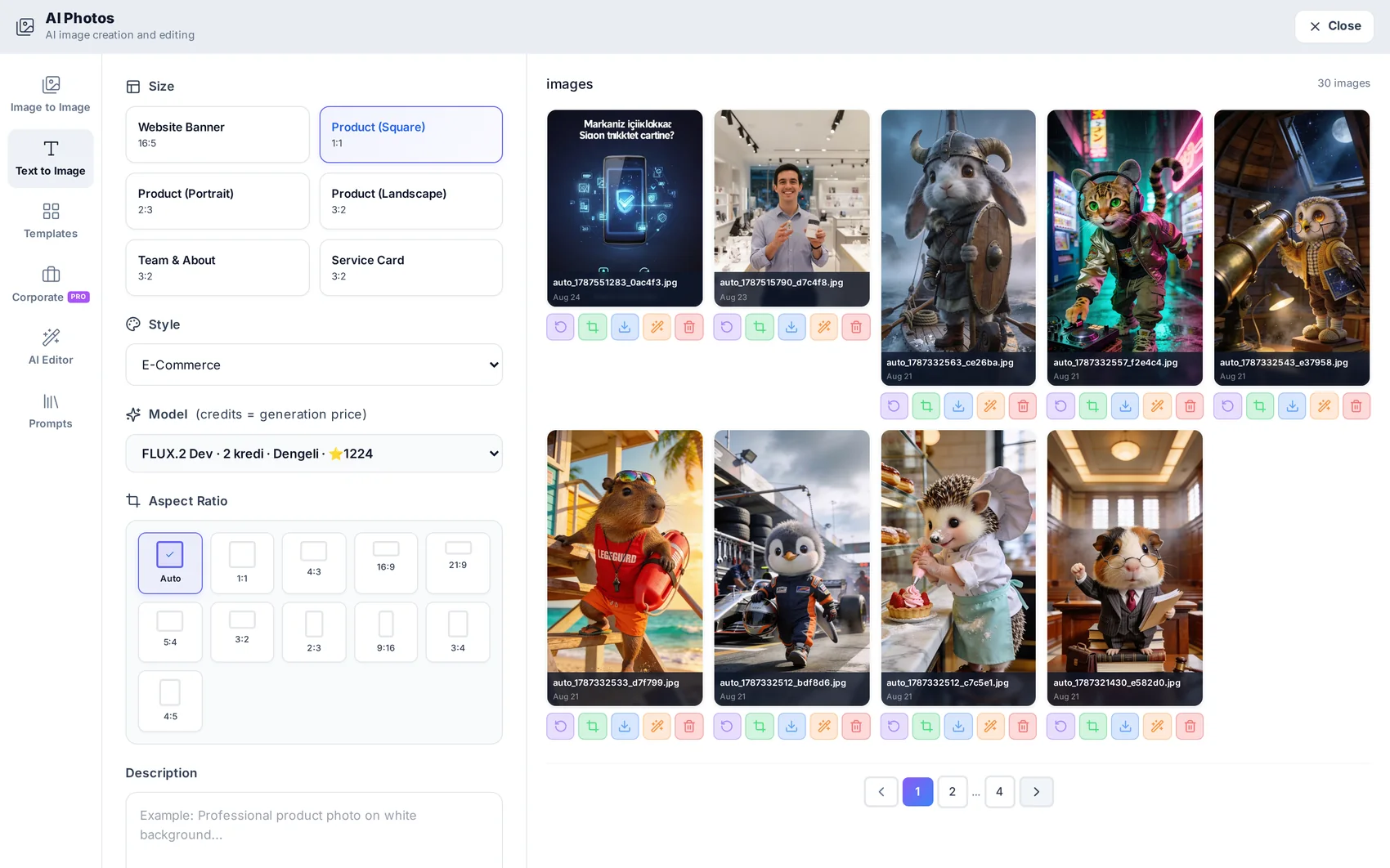
Describe what you want (text to image)
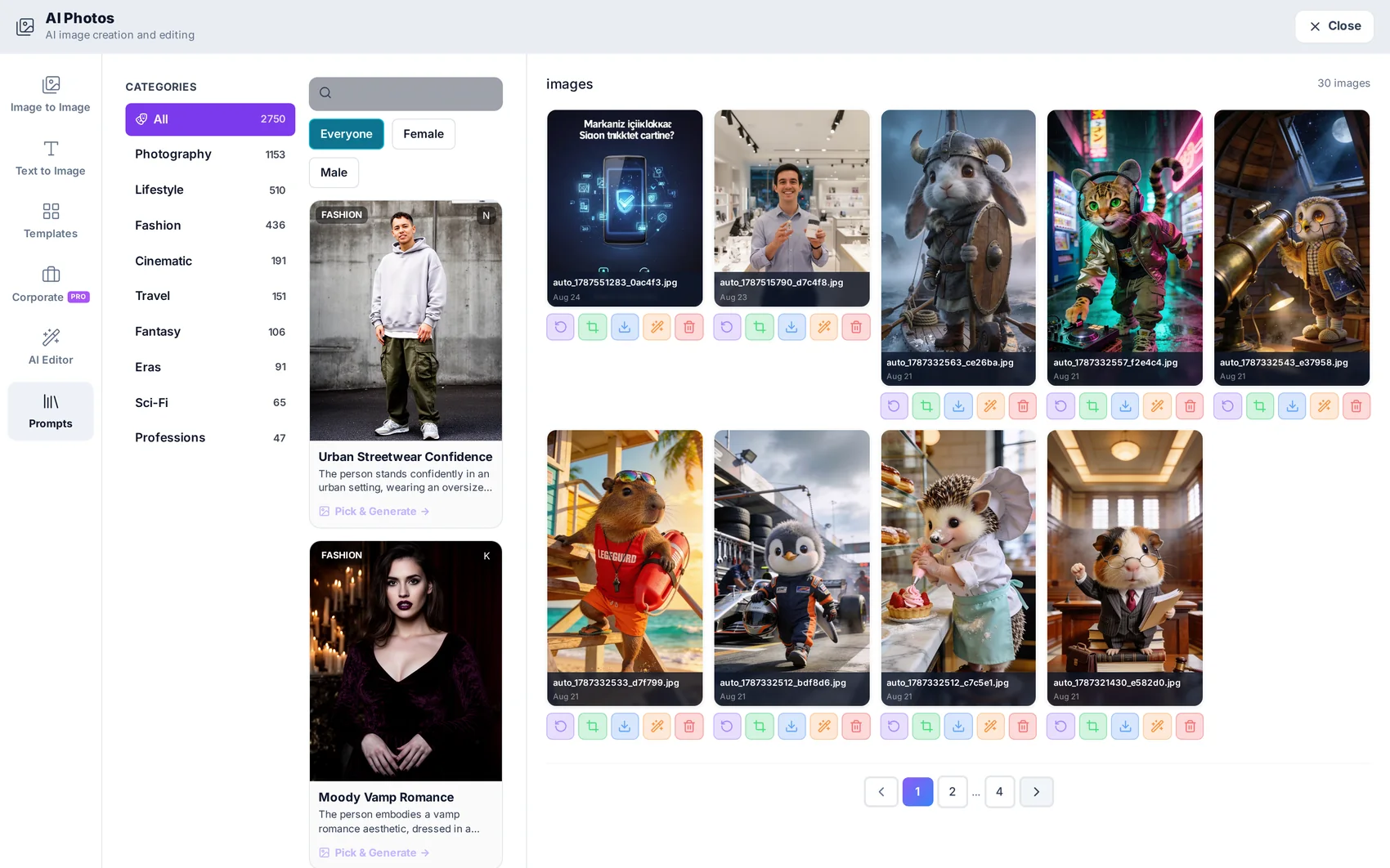
Open AI Photos → Text to Image, write what the picture should show, pick a size and aspect ratio, and generate. The prompt library holds ready starting points if you would rather adapt than write.
Tip · Say the subject, the setting, the lighting and the mood. Four short clauses beat one long sentence.
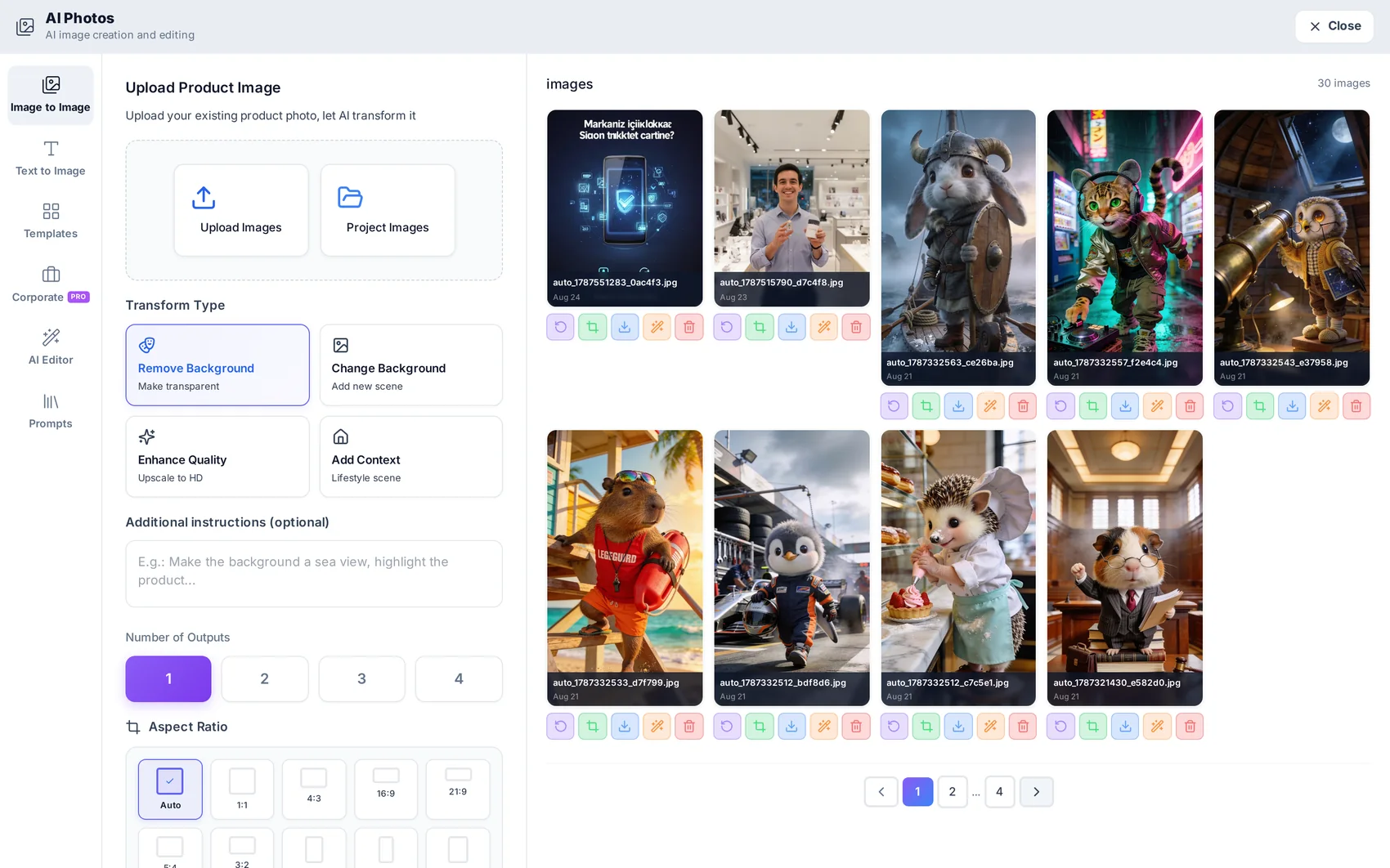
Start from your own photo (image to image)
Upload a product photo and choose a transform: new background, new style, upscale, retouch. This is the fastest route to catalogue images from phone photos.
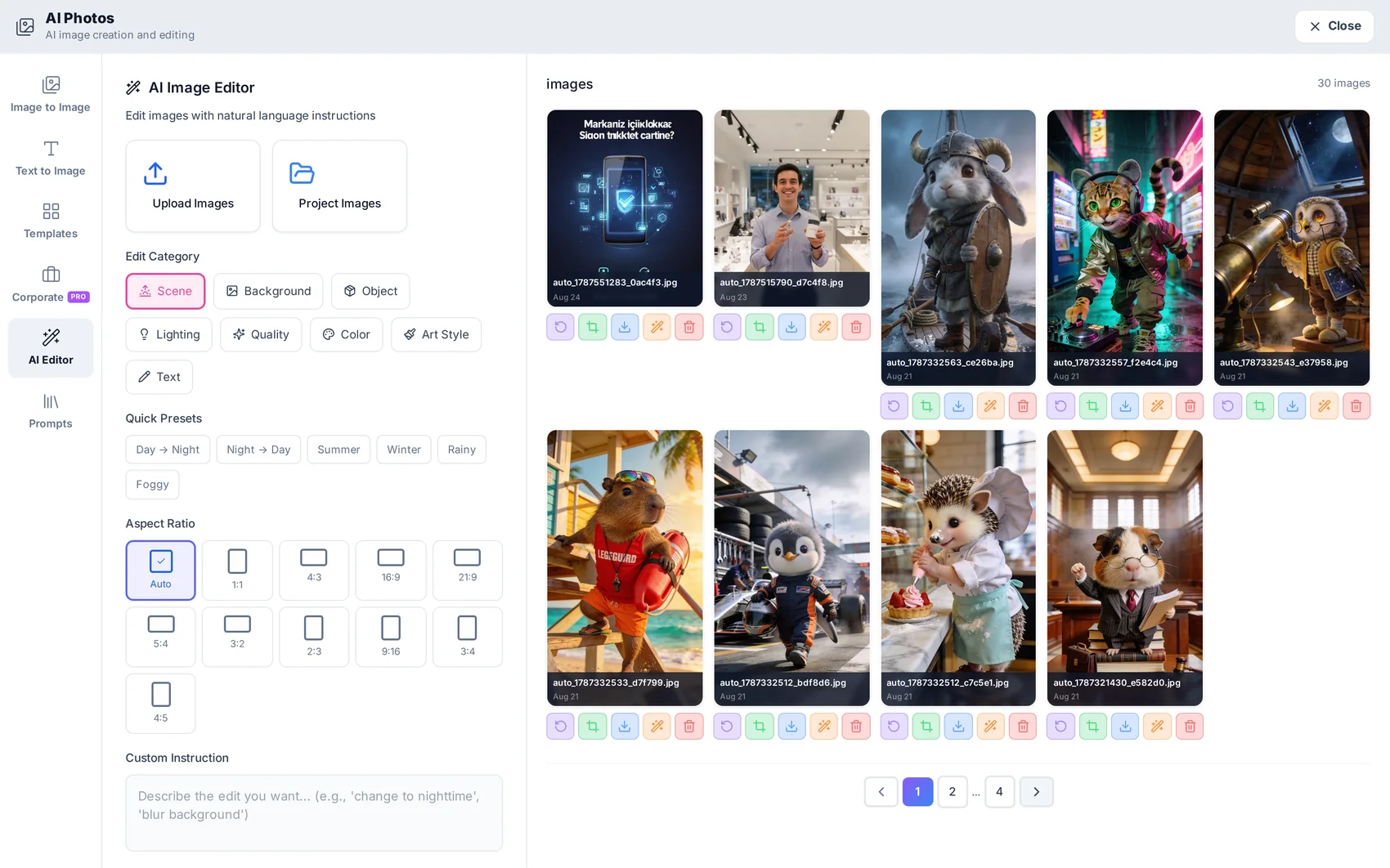
Cut the subject out
One click removes the background and leaves a clean cut-out with transparent edges — ready to place on a coloured shape in Studio or over a section background.
Batch consistent corporate shots
Corporate templates apply the same lighting, framing and background to a set of products or people, so a catalogue looks like one shoot instead of ten.
Reuse what you made
Every image lands in the project library, available to the website editor, Studio, videos and social posts. Nothing has to be downloaded and re-uploaded.
Read next
Studio: designing visuals for the site and social
Ready designs that adopt your brand, a layered canvas, and a direct route into pages and posts.
AI Videos: ads, avatars and product spots
Choose a model with the price in front of you, generate the video, and get finished audio with it.